Friday, 18 January 2013

Character Design: Tracing in Adobe illustrator

Recently we've been designing characters which will eventually culminate in an animated 3D model, but before that, we've been told to create a model sheet to show the character off in 2D.
To do this, I've had to create using illustrator to ink the character sketches for the final design.
Taking sketches from photoshop, I had to import them into Illustrator and ink them in. The result on the front model came out looking very tidy compared to how it would if I drew up the inks in Photoshop, which given he's a robot would probably be more appropriate than looking very sketchy. The process took much longer than it would have in other programs, but the results are decent enough that I think it was worth using. The basic inks were also masked off so that it appears cleaner when it was imported into photoshop and coloured up.

When brought into photoshop I applied basic shading to the character, I thought about giving very painted shading but given it's a robot I wanted very simple shading to make it look a bit cleaner than I do more organic characters. The bit which I really enjoy about colouring this character is that I was able to use some textures to try and give an impression that he's made of metal. I created a brushed metal texture in photoshop which I applied to the grey areas in addition to finding a fabric texture on the net which was applied over the top of the hat. Overall I think the character's come out looking alright, I'm tempted to go back and alter the shading of the character later but I would say that the inks at least have came out looking rather tidy and uniform thanks to the straight lines Illustrator is able to make.

UPDATE: Decided on some new shading, looks much more detailed and less like someone used the burn tool. looks slightly more cinematic and also has details on the tubing and the brush on the end of the character's hand.


Monday, 7 January 2013

Character design: Lovely references.


The Big Book of Character Design features a collection of contemporary character design from a plethora of different artists. The amount of different styles is very large and there are several examples which I quite liked:


This example is Charu Chan is one I like the simplicity of, the expression is fun and the design is something different. Visually it's appealing just because it seems as if it's trying to achieve what it is, a cute character.
The addition of the sweets and fruit on the top of her head adds to the cute factor which I think the artist is trying to enforce.

Overall this character shows that minimalism can produce really nice looking characters, in a very similar vein to Hello Kitty, as it looks nice without needing to add tons of detail which I don't really think would make the character as relatable because there would be too much to it.
The fact it's bright also helps because it's a character that's designed to be bright and happy which is something I quite like simply because bright and happy things are cool, simple as.


This character "Kyle" was created by Jared Nickerson, part of the reason that I really like it is because when I first saw it, it took me a few minutes to work out that it was actually CGI and not a toy. The design is quirky and the amount of detail which the artist has went into, right down to the surface texture of the bomb, really makes this character look great. The addition of the mustache is a good addition because it adds to the personality of the character.


I went and looked into some of Jared Nickerson's other artwork and was really pleased with the 2D art which I found the work is again, very bright and colourful but the shading is also really good looking and the work just gives a real air of professionalism.
A lot of the work appeals to me because I'm very much influenced by cartoons and an almost Japanese graffiti style which I'm a big fan of, particularly in the piece he created known as "Atomic Lollipop". I love the bright, vibrant colours of Nickerson's 2D work and to be honest, it's the sort of thing I'd wear on a t-shirt.


Ariefoort is a character designed by Pixelkaiju, and the reason I like his design is the fact that he's a physical model (or... plush) and I like the idea that characters can be designs to be a physical item which can be picked up. This appeals to me because a character which you can pick up adds to the realism of a character and gives it more dimension. It's a nicely designed and the fact it's made out of material and textiles may well be part of the characters design and this is just the natural way the character was intended to be presented, but in an age where everything is drawn or modelled and then presented digitally, it's nice to see a more traditional approach to designing a character. 

The original design of the character is alright, but I would say that a character designed to be a doll hand-drawn looks a litte bit creepy, so personally I think the character looks less unsettling when it's presented as a toy or a doll or a plush.

Friday, 14 December 2012

Final animation for the bank scene

Finally rendered and shown in widescreen, a very simple bank scene. The bonus is the animating flag because I thought the scene was boring with just a foot moving so needed something to liven it up and also to possibly add a bit of drama, as the flag stops blowing when the character's foot hits the ground, as possible foreshadowing.


Fleeing scene, final animation and changes.


The final video of the escape scene is up, I've changed the grass texture to just black and ended up playing with the lighting to create silhouettes rather than having blue silhouettes. Firstly, the grass texture wasn't that great and in someways detracted from the visual appeal of the scene. By playing with the light I was able to better convey the time of day, in a low light with silhouettes only to make out what is happening gives a much better impression that the scene is happening at Dusk. 

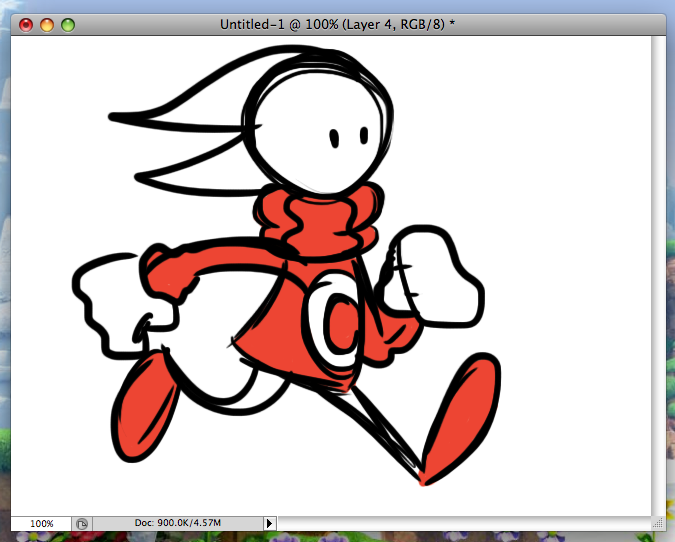
I also added actual animation to the fleeing characters, I animated their movement in flash and then exported as a JPEG image sequence which was placed frame by frame into Cinema4D as materials. Then very much in the same way as everything else, it was then animated after the movement tween was put in so that they were animating and moving at the same time.


Final artwork in the bank scene


I replaced the artwork which was a placeholder with the final artwork.

Thursday, 13 December 2012

Background construction

I began remaking my scenes by creating backgrounds. While the majority of assets are 2D and drawn in photoshop, I felt that adding in a 3D hill would give it a better sense of depth and add something a little bit different from an entirely paper thin scene.
The sky is a photoshop painted background, the lighting is added in over the top, however the light source was also added to the background texture under the hill as a base and all lights in Cinema4D were laid on afterwards. Some extra lighting had to be added round the front, which can make the light sources for the audience, however the character would come up as completely black and I want a blue colour to them.
The characters were added as a single plain which was textured with the drawing and the appropriate alpha applied. I then used the timeline to block in the positions I wanted the characters to move across to travel to the other side of the hill. Since they had to go over, I then went in and further adjusted them to make it look better aesthetically.


The second scene I created required much more construction and was layered up a lot more like a stop motion set would, although all of the objects inhabiting this set are 2D planes,  no three-dimensional objects are used in this scene.


I started with the plane which became the pavement and layered some placeholder art in for the city backdrop which I'll change once I've created a more detailed version. The sky is the same as the previous scene, but it's been angled upwards so the light appears in the sky, rather than setting into the horizon. It also helps that the sky is going to be obscured by buildings and characters so the audience hopefully won't notice, but it does save me time on creating assets.


A stand-in for the bank has been constructed and a character foot was created to step into frame.
Then it was changed to resemble the shot in the storyboard, which makes the set look a little more convincing when viewed from this angle because the layered assets give it a sense of depth, particularly the plane which is being used as a floor.


Thinking the scene needed something extra, I've added cars. It makes sense that there would be cars in the area anyway, but also that the mobsters who are robbing the bank in the cartoon would arrive using cars.
It adds to make the scene look a lot more inhabited and a little more believable, but also aids in driving the plot.

Wednesday, 12 December 2012

2D animation in Cinema4D

After starting from scratch, I decided to go with the approach of making my characters out of 2D images and then animating them in very much the same way I make animation on something like Flash.
I started off by doing some tests with the technique of animating textures in Cinema 4D.
I drew a character in photoshop which a motion in sequence that I could use to create an animated texture in Cinema 4D.
I saved the image as a Jpg for the file size, because many different assets on the screen at once will increase the overall file size of the Cinema 4D document.

Since .jpg doesn't have a built-in Alpha channel like a .png file, I have to create the alpha channel myself as a separate jpg which can then be loaded into Cinema4D to define which areas of the texture are transparent and which are opaque.

In the case of these alpha channels, they are loaded into the transparency settings when you are creating the frame in Cinema4D, sometimes they have to be inverted to get the right effect

      When loaded into Cinema4D, the different frames of animation are created as materials which can be dragged onto an object to create movement by using the object's own timeline within Cinema4D to swap out materials, this is very similar to creating key-frames in a 2D animation program.

The materials are then used within the object's timeline, to insert a keyframe you must click the red dot above before inserting a new material. When you are done, you should have an animating character.